No, it should be ready to go the moment you install OBS, much like being able to stream and record.
Assuming if you have the settings and keybinds setup, you just press “Start Replay Buffer” and leave it on until you don’t want clips to be made anymore.
How to setup Replay Buffer.
Assuming you’ve got the basic OBS settings down then you just need to follow these 9 steps:
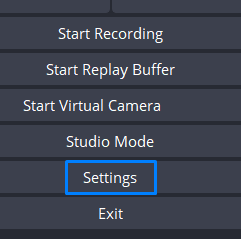
- Go into Settings.
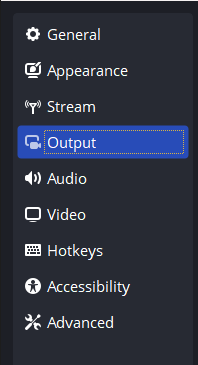
- Go to Output.
- Go to Recording.

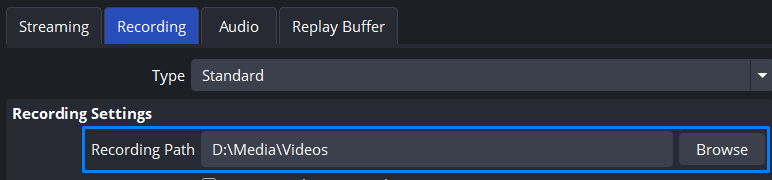
- Make sure there’s a recording path.
- Head to Replay Buffer.

- Check Enable Replay Buffer, and set how far back you want it to capture.

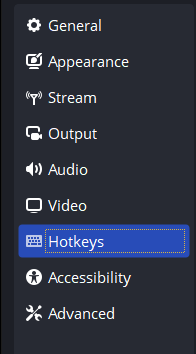
- Head to Hotkeys.
- Filter in “Replay” to find the keybinds easier.

- Give “Save Replay” a keybind at the very least.
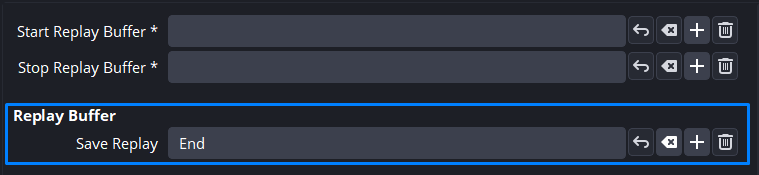
Then that’s it you’re done.
You are now able to start using Replay Buffer and do clipping shenanigans like on Medal, Shadowplay, etc.

I haven’t had any issues w/ Replay Buffer thus far - or OBS in general too much really - outside of directory issues since I’d like having my regular recording and clips be organized in separate files.
But I haven’t got a clue on how to do that, so my regular recordings and clips are together for now. .

But aside from that, I prefer it over Shadowplay since I have a widescreen monitor. And I need to enable capture desktop to not have the resolution in my clips and recordings be super stretched. .